



Table of Contents Show
The best laptop configurations for architecture software in 2026 start with a multi-core processor (Intel Core i7/i9 or AMD Ryzen 7/9), a dedicated NVIDIA RTX GPU with at least 8 GB of VRAM, 32 GB of RAM, a 1 TB NVMe SSD, and a color-accurate display with at least QHD resolution.
Choosing the right laptop as an architect is not about buying the most expensive machine on the shelf. It is about matching hardware to the software you actually use every day. A Revit user juggling multi-story BIM models with linked files needs a very different configuration than someone who works primarily in SketchUp for early-stage concept studies. Rendering engines like Lumion and Enscape add another layer of GPU demand on top of that. The wrong setup leads to crashes during deadline-week renders, frozen viewports, and hours lost waiting for exports. The right setup keeps the design process smooth and lets you focus on the work itself.

What Makes a Laptop Suitable for Architecture Work?
Architecture software falls into three broad categories, and each one stresses different hardware components. 2D drafting and documentation tools like AutoCAD are mostly CPU-bound: they rely on fast single-thread clock speeds to redraw complex plans without lag. 3D modeling programs like Rhino, SketchUp, and Revit need both a strong CPU and a capable GPU, especially once you start working with large assemblies or real-time walkthroughs. Then there are rendering and visualization tools, such as Lumion, Enscape, Twinmotion, and V-Ray, which are almost entirely GPU-driven and depend heavily on VRAM to load textures and scene geometry into memory.
A laptop that covers all three categories well is the goal. Prioritizing one at the expense of another usually means running into bottlenecks the moment your workflow shifts, and architectural workflows shift constantly.
🔢 Quick Numbers
- Architects lose an average of 20+ hours per week on underpowered hardware, according to a 2025 workflow efficiency study by Architizer
- Real-time rendering tools like Lumion require a minimum of 8 GB VRAM, with 12 GB or more recommended for scenes over 5,000 objects (Lumion System Requirements, 2026)
- 32 GB of RAM is now the practical minimum for professional BIM work; 64 GB is recommended for large commercial projects (Autodesk Revit 2026 System Requirements)
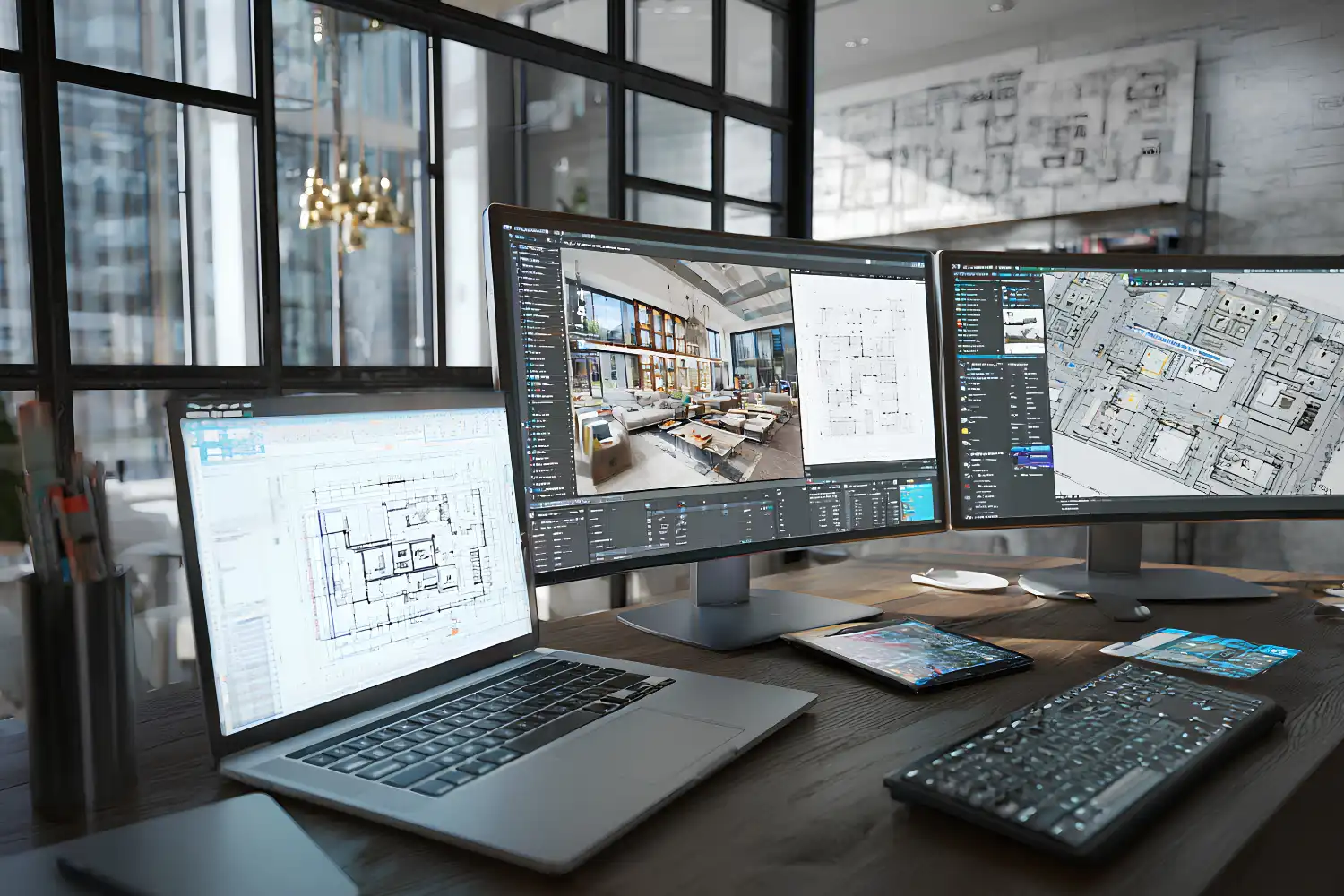
Recommended Specs for Architecture Software in 2026
The specs below reflect what actually performs well in professional workflows, not just the minimum listed on a software vendor’s requirements page. Minimum requirements will technically launch the program, but they will not handle a real project with linked models, high-polygon scenes, or simultaneous applications running.
CPU Requirements
For architecture work, look for Intel Core i7 or i9 (14th generation or newer) or AMD Ryzen 7 or Ryzen 9 processors with at least eight cores. Programs like Revit still rely heavily on single-thread performance for viewport navigation and model interaction, so high clock speeds (4.5 GHz boost or above) matter more than core count alone. However, rendering, export, and analysis tasks can take advantage of multiple cores. Four-core processors will frustrate you within months on any serious BIM project.
GPU and VRAM
An NVIDIA GeForce RTX 4060 with 8 GB VRAM is the entry point for professional architecture workflows. If you run real-time rendering software like Enscape or Twinmotion alongside your modeling tool, step up to an RTX 4070 or RTX 4080 with 12 GB VRAM. For those using AI-powered rendering tools, more VRAM translates directly to larger scene capacity and faster generation times. NVIDIA GPUs are preferred over AMD in this space because most architecture rendering plugins are optimized for CUDA cores.
💡 Pro Tip
Before buying, check whether your rendering plugin supports NVIDIA DLSS or OptiX ray tracing. Both features offload work to dedicated hardware on RTX cards and can cut render times by 40-60%. If your plugin supports them, an RTX 4060 with DLSS enabled can outperform an older RTX 3080 without it.
RAM and Storage
32 GB of DDR5 RAM is the baseline for professional use in 2026. Students working primarily with smaller models and SketchUp can manage with 16 GB, but they will outgrow it quickly once they start working with linked Revit models or running Photoshop alongside their 3D software. Architects handling large commercial or multi-building projects should target 64 GB to avoid slowdowns from memory swapping.
For storage, a 1 TB NVMe SSD is the minimum. Opening a 500 MB Revit central model from a slow drive adds minutes to every session. NVMe drives with sequential read speeds above 5,000 MB/s make a noticeable difference when loading large files, running local renders, and switching between applications. A second drive or an external SSD for project archives keeps the primary drive free and responsive.
Display Quality
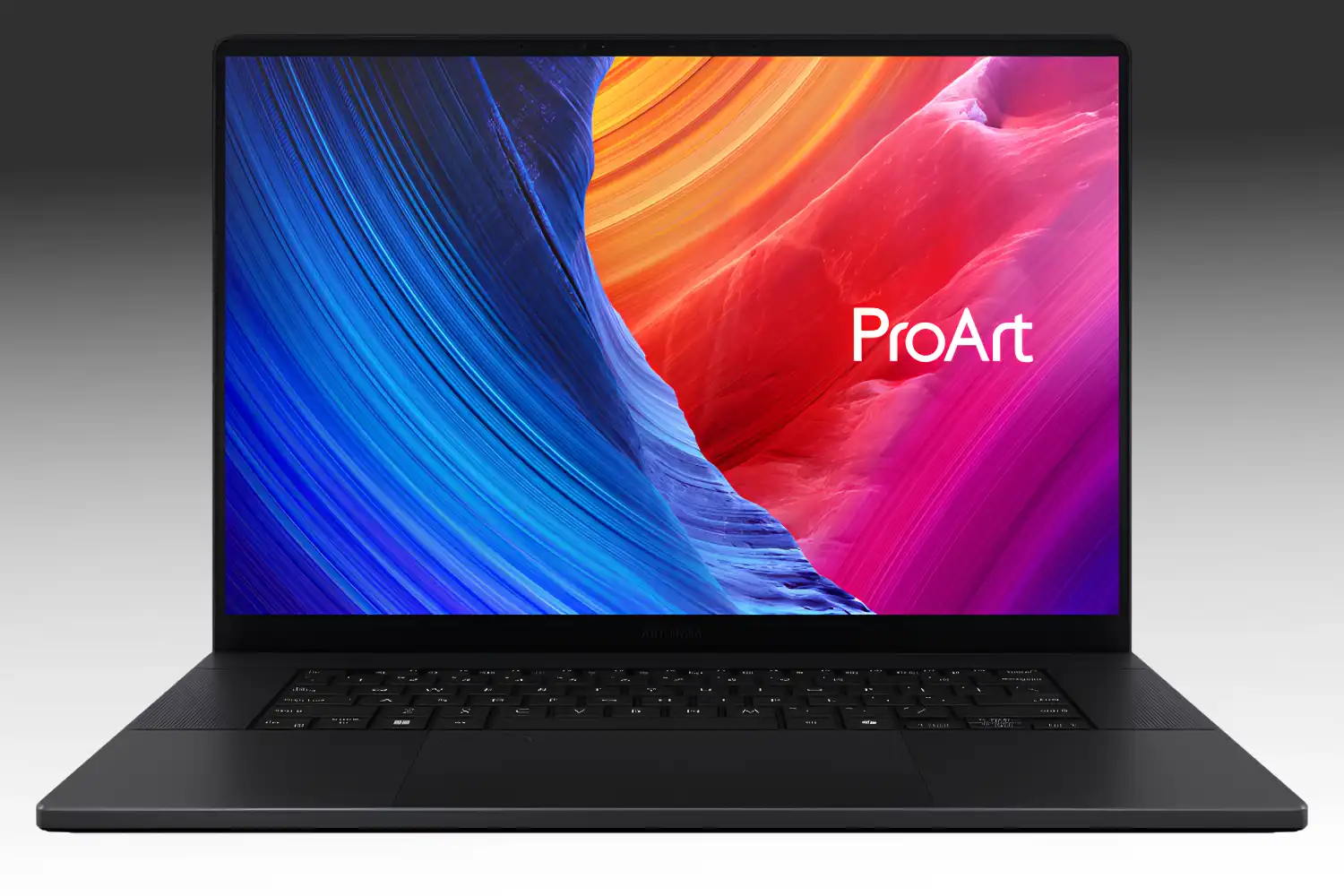
A 15.6-inch or 16-inch screen with at least QHD (2560 x 1440) resolution is the sweet spot for portable architecture work. Color accuracy matters for material selection and client presentations: look for displays that cover 100% sRGB and at least 95% DCI-P3. OLED panels offer the best contrast and color accuracy, with the ASUS ProArt P16’s 4K OLED being a strong reference point. IPS panels remain a solid, more affordable alternative. Avoid TN panels entirely.
Top Laptop Configurations for Architects
The table below compares five laptop configurations suited to different architectural workflows and budgets. Each configuration reflects real hardware available in 2026.
Laptop Configuration Comparison for Architects
| Configuration Tier | CPU | GPU / VRAM | RAM | Best For |
|---|---|---|---|---|
| Student / Budget | Intel i7-13650HX or Ryzen 7 7735HS | RTX 4050 / 6 GB | 16 GB | AutoCAD, SketchUp, light Revit |
| Mid-Range | Intel i7-14700HX or Ryzen 7 8845HS | RTX 4060 / 8 GB | 32 GB | Revit, Rhino, Enscape |
| Professional | Intel i9-14900HX or Ryzen 9 8945HX | RTX 4070 / 8 GB | 32 GB | Large BIM, Lumion, Twinmotion |
| Workstation | Intel i9-14900HX or Ryzen 9 7945HX | RTX 4080 / 12 GB | 64 GB | Multi-model BIM, V-Ray, 3ds Max |
| Apple Ecosystem | Apple M4 Pro or M4 Max | Integrated / 16-48 GB unified | 36-48 GB unified | SketchUp, Vectorworks, Rhino for Mac |
A few things stand out in this comparison. The mid-range tier (RTX 4060, 32 GB RAM) covers the widest range of workflows for the money. Most architects working in small to mid-size firms will find this configuration handles 90% of daily tasks without trouble. The workstation tier only becomes necessary when you are regularly opening models with hundreds of linked files or running heavy GPU rendering jobs locally.
📌 Did You Know?
A growing number of architecture firms now issue gaming laptops to staff instead of traditional mobile workstations. Gaming laptops with RTX 4060 or 4070 GPUs often deliver the same rendering performance as workstation-class machines at 30-40% lower cost, according to a 2025 hardware survey by Architizer.
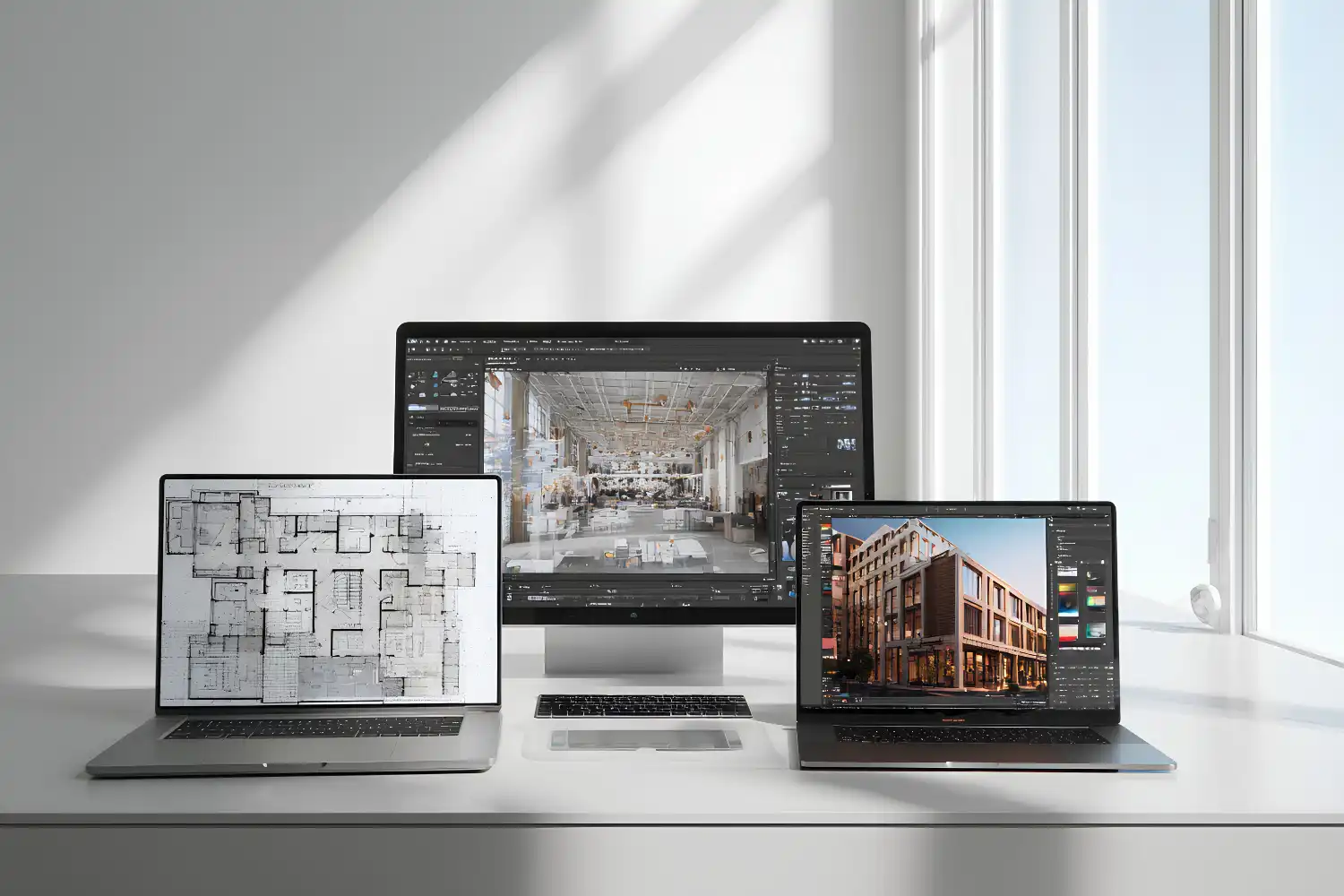
How to Match Your Laptop to Your Workflow
The right configuration depends on your specific software stack. If your firm uses Autodesk tools like Revit and AutoCAD as its primary platform, stick with Windows. Revit does not run natively on macOS, and running it through Parallels or Boot Camp introduces performance penalties and compatibility risks that are not worth accepting on a production machine.
If your workflow centers on SketchUp, Rhino, Vectorworks, or Adobe Creative Suite, an Apple MacBook Pro with M4 Pro or M4 Max is a strong option. The unified memory architecture means the GPU shares the full memory pool, which helps with large textures and complex scenes even without a discrete NVIDIA card. Battery life on Apple Silicon also outlasts most Windows laptops by a wide margin, which matters for architects who move between the office, site visits, and client meetings.
Students entering architecture school should check their program’s software requirements before buying. Many accredited programs mandate Revit, which locks you into Windows unless you plan to run a virtual machine. A mid-range Windows laptop with an RTX 4060 and 32 GB RAM covers every program a typical B.Arch curriculum throws at you, from AutoCAD through ArchiCAD and SketchUp to Lumion and Grasshopper.
For architects who spend significant time on AI-driven visualization and rendering, GPU power should be the top priority. AI rendering tools like Stable Diffusion and ControlNet run locally on your GPU, and 8 GB VRAM is the bare minimum for useful output quality. Investing in 12 GB VRAM opens up higher-resolution generation and more complex scene processing.
Thermal performance is one factor many buyers overlook. A laptop that hits its thermal limits under sustained load will throttle its CPU and GPU, delivering paper specs that never show up in practice. Look for independent reviews that test sustained performance over 30-minute rendering jobs, not just short benchmark bursts.
Where to Go From Here
Your Next Step: List every piece of software you use in a typical project week, check each program’s recommended (not minimum) system requirements on the developer’s site, and compare those requirements against the configuration tiers in the table above. That ten-minute exercise will tell you exactly which tier fits your work and prevent you from overspending or underbuying.














Leave a comment