

Free Title Block Generator
Paper and margins
Layout and style
Choosing a preset replaces the field list at once but keeps text you typed into fields of the same kind. Paper and layout changes reset the title block size and text height to a suggested value. A bottom band on a small sheet splits into two or three rows automatically.
Fields
Revision table
| Rev | Date | Description | By | |
|---|---|---|---|---|
Sheet numbering and index
| Show | Number | Title | Scale | |
|---|---|---|---|---|
Numbering follows the US National CAD Standard: discipline letter, sheet type digit, two digit sequence from 01. Generating keeps titles of numbers that already exist.
Exports are black lines on white paper at the real sheet size. When printing, choose the same paper and 100% (actual size). Your logo and text stay in this browser; nothing is uploaded.
This title block generator builds a complete architectural title block for the paper you actually print on, from ISO A0 to A4 and ARCH or ANSI sheets, as a right hand strip or a bottom band. Fill in the project, drawing, scale, people and revisions, number the whole set, then download each sheet at true size as SVG, PNG, PDF or DXF for AutoCAD. Everything runs in your browser: your logo and project data are never uploaded.
How to use this title block generator
- Pick the paper. Choose ISO A0 to A4, ARCH A to E (including E1), ANSI A to E or a custom size, then landscape or portrait. Set the four margins and the binding margin, choose whether the binding edge is on the left or the top, and work in millimetres or inches.
- Place the title block. Use a right vertical strip or a bottom horizontal band. The strip width or band height is suggested from the paper and you can change it. A band can run in one, two or three rows; on Automatic it picks the fewest rows that keep every cell readable.
- Choose a style. Classic office, Minimal or Student. The preset applies as soon as you pick it and keeps any text you already typed into fields of the same kind. Then set the typeface, the text height, three line weights (border, title block line, inner lines) and whether the inner grid has rows and columns or rows only.
- Edit the fields. Add, remove and reorder fields. Each field has a label, a size and a full, half or third width; fields with partial widths share a row.
- Fill the revision table. Add a row per issue with Rev, Date, Description and By. The next revision letter or number is filled in for you.
- Number the set. Choose the discipline letter, the sheet type, the first sequence number and the number of sheets, then press Generate list to get A-101, A-102 and onwards. Give every sheet its own title and, if needed, its own scale, and pick which sheet the preview shows.
- Export. For the sheet on screen: SVG, PNG at 96, 150 or 300 dpi, DXF, or Print / PDF. For the whole set: SVG zip, DXF zip, Print all and a sheet index CSV. Save JSON keeps the setup as a template for the next project, and Load JSON brings it back.
The preview switches between the whole sheet and a title block close-up, the easiest way to check small text before you print.
The fields you can add
The generator has 24 field types. The presets give you a starting set and Add a field has the rest:
- Who and where: office name or school name, course, instructor, student, client, address and a logo.
- What: project name, project number, drawing title, sheet number, scale, date and status (for example FOR REVIEW). For which scale suits which drawing, see architectural drawing scales.
- Responsibility: drawn by, checked by and approved by, plus a seal and signature box.
- Graphics and notes: a north arrow you can rotate in degrees clockwise, a key plan area, a notes field, a custom text field and the revision table.
The key plan area and the seal box are empty frames: you add the key plan drawing and the stamp in CAD or by hand. The logo can be a PNG, JPEG, SVG, WebP or GIF file of up to 2 MB. If you want the background on what each field is for and how offices lay them out, our article on the architectural title block covers it. This page sticks to building one.
The three presets
- Classic office has the logo, office, notes, key plan, north arrow, seal, revision table, project, client, address, project number, date, drawing title, drawn, checked and approved, scale and sheet number. Line weights 0.7, 0.5 and 0.25 mm.
- Minimal keeps the office, notes, project, drawing title, scale, date, north arrow and sheet number, with lighter lines (0.5, 0.35 and 0.18 mm) and rows only. On a small sheet it gives you the largest text.
- Student replaces the office block with school, course, instructor and student fields, and keeps the north arrow, key plan, notes, project, date, title, scale and sheet number. Use the same saved template for every board in a semester and the set will read as one.
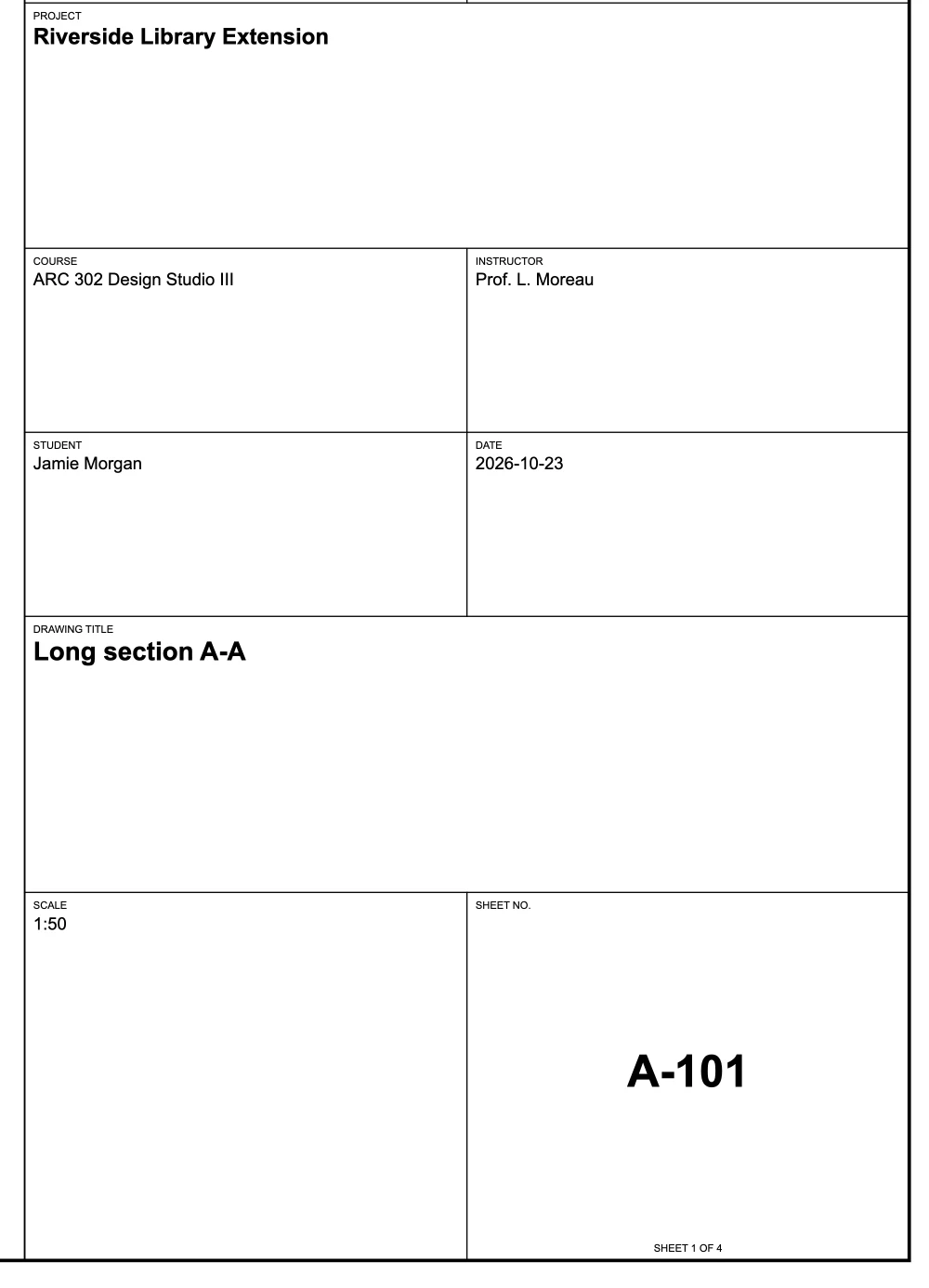
Right strip or bottom band: which layout to use
A right vertical strip suits large sheets, where the long edge has room for a tall column of fields and the revision table can grow downwards. A bottom band suits small sheets such as A3 and A4, where a strip would eat too much of the drawing width.

The suggested sizes follow the paper. For a strip, the tool suggests 180 mm when the long side of the sheet is 800 mm or more (A1, A0, ARCH D and larger), 150 mm from 550 mm, 110 mm from 400 mm and 80 mm below that. The 180 mm figure comes from ISO 7200, which places a title block of that width in the lower right corner. For a band, it suggests 90, 70 or 55 mm depending on the short side, and on the smallest sheets 70 mm in portrait or 50 mm in landscape. On a portrait A4 sheet that means a 70 mm band in two rows.
Text is fitted to its cell: made smaller if needed, but never below 1.8 mm, the smallest lettering height in the ISO 3098 series. Words wrap at spaces and are never split in the middle. If a text still does not fit, the last visible line is shortened with an ellipsis and the status line names the field, so a long project name or a date is never cut off without you knowing. When the revision table runs out of space, the newest revisions are kept and the tool tells you how many are shown.
Paper sizes, margins and true size output
- Paper sizes follow ISO 216 for the A series and ASME Y14.1 for ARCH and ANSI sheets, converted at exactly 25.4 mm per inch. ARCH D, for example, is 24 x 36 in, or 609.6 x 914.4 mm.
- Margins default to 10 mm on every edge plus a 10 mm binding margin, which gives the usual ISO 5457 frame of 20 mm on the filing edge and 10 mm on the others. In inches the default is 0.5 in plus a 0.5 in binding margin. If you switch units while the margins are still at their defaults, they change to the defaults of the other unit; margins you changed are only converted.
- SVG is written with its width and height in millimetres and a matching viewBox, so it opens at the real sheet size.
- Print / PDF sets the page to the exact paper size with no margins, so a PDF page equals the sheet. Your browser’s own print command (Ctrl+P or Cmd+P) does the same.
- PNG stores its dpi in the file and is capped at 50 megapixels to protect phones and low memory computers. At 300 dpi, A1 and ANSI D are saved at 250 dpi, ARCH D at 200 dpi, and A0, ARCH E1, ARCH E and ANSI E at 150 dpi, and the tool says so. For print quality on large sheets use SVG or Print / PDF, which are vector.
Sheet numbering and the sheet index
The numbering follows the US National CAD Standard, Uniform Drawing System Module 1. A sheet number has three parts:
- Discipline designator: one letter followed by a hyphen, or two letters. A is architectural, S structural, M mechanical, E electrical, P plumbing, L landscape, and the field suggests the full list.
- Sheet type: one digit. 0 general, 1 plans, 2 elevations, 3 sections, 4 large scale views, 5 details, 6 schedules and diagrams, 7 and 8 user defined, 9 3D representations.
- Sequence: two digits from 01 to 99. 00 is not used.
So A-101 is the first architectural plan sheet, A-201 the first elevation sheet and S-101 the first structural plan. Keeping the types apart leaves room to insert a sheet later without renumbering the rest. Besides the NCS format (A-101, or AE101 with a two letter discipline) you can choose an underscore (A_101) or no separator (A101).
Generate list builds the numbers and keeps the titles of numbers that already exist, so you can extend a set without retyping it. Add sheet appends the next number. The sequence stops at 99; past that the tool leaves the number empty and tells you, instead of quietly changing the sheet type digit. Tick “Sheet 1 of n” if you want the count printed under the sheet number.
The sheet index CSV lists every sheet with its number, title, discipline, sheet type, scale, revision and date, ready to paste as the drawing list on the cover sheet of your construction documents. It opens cleanly in Excel: it is saved as UTF-8, and titles that start with =, +, – or @ are saved as plain text so a spreadsheet never reads them as formulas.
Line weights and text height
The three line weight menus use the ISO 128 series: 0.13, 0.18, 0.25, 0.35, 0.5, 0.7, 1 and 1.4 mm. A border of 0.7 mm, a title block outline of 0.5 mm and inner lines of 0.25 mm, the Classic office default, is a safe starting point that reads clearly at any sheet size. For the reasoning behind line hierarchy on the rest of the drawing, see our guide to architectural line weights.

The suggested text height is 3.5 mm when the long side of the sheet is 800 mm or more, 3 mm from 550 mm and 2.5 mm below that. You can type any value down to 1.8 mm. Changing the paper or layout resets the title block size and text height to the suggested values.
Using the files in CAD and for printing
- DXF. The file is DXF R12, the most widely readable version, with 1 unit = 1 mm (or 1 inch in inch mode). Open it or insert it at 0,0 in a layout at 1:1. Lines and text sit on five layers: TB-FRAME, TB-TITLEBLOCK, TB-THIN, TB-TEXT and TB-SYMBOL. R12 has no line weight field, so map those layers to pen weights in your plot style or layer settings. The DXF uses the standard CAD text style, so text widths can differ slightly from the SVG, and the logo comes in as an empty frame.
- PDF. In the print dialog choose the same paper as the sheet, or Save as PDF, and print at 100% or actual size, not fit to page. Print all puts one sheet per page.
- SVG and PNG. SVG is the best choice for a layout in Illustrator or Inkscape because it stays sharp. PNG is for image editors and quick previews.
All exports are black lines on white paper at the real sheet size. For naming layers to match your office template, see our note on CAD layer standards.
What this title block generator does not do
It draws the sheet frame and title block, not the drawing inside it. There is no CAD block with editable attributes: the DXF is plain lines and text that you edit like any other geometry.
Frequently asked questions
Is this title block generator free?
Yes. There is no account and no sign up. The sheet is drawn in your browser and the files are generated there too.
How wide should a title block be?
ISO 7200 recommends 180 mm, which is also the full drawing width of an A4 sheet once the margins are taken off. The generator suggests 180 mm on large sheets, narrower strips on smaller ones, and a bottom band of 50 to 70 mm on A3 and A4, in two rows on a portrait sheet.
How are architectural sheets numbered?
With the US National CAD Standard format: a discipline letter (A for architectural), a sheet type digit (1 for plans) and a two digit sequence. A-101 is the first architectural plan sheet and A-201 the first elevation sheet.
Can I open the title block in AutoCAD?
Yes. Download the DXF (R12) and open it or insert it at 1:1. Lines and text are on separate TB layers, and one unit is one millimetre, or one inch if you work in inches.
Will the PDF print at the right size?
Yes. The Print / PDF button, and your browser’s own print command, print only the sheet at its exact paper size with no margins. In the print dialog choose that paper, or Save as PDF, and 100% or actual size rather than fit to page.
Is my logo uploaded anywhere?
No. The logo and all text stay in your browser. They are saved only on your device, and inside the JSON template if you download one.
Can I make a hatch pattern for the drawings on these sheets?
Yes, with the hatch pattern generator, which writes AutoCAD .pat and Revit fill pattern files.


