


Table of Contents Show
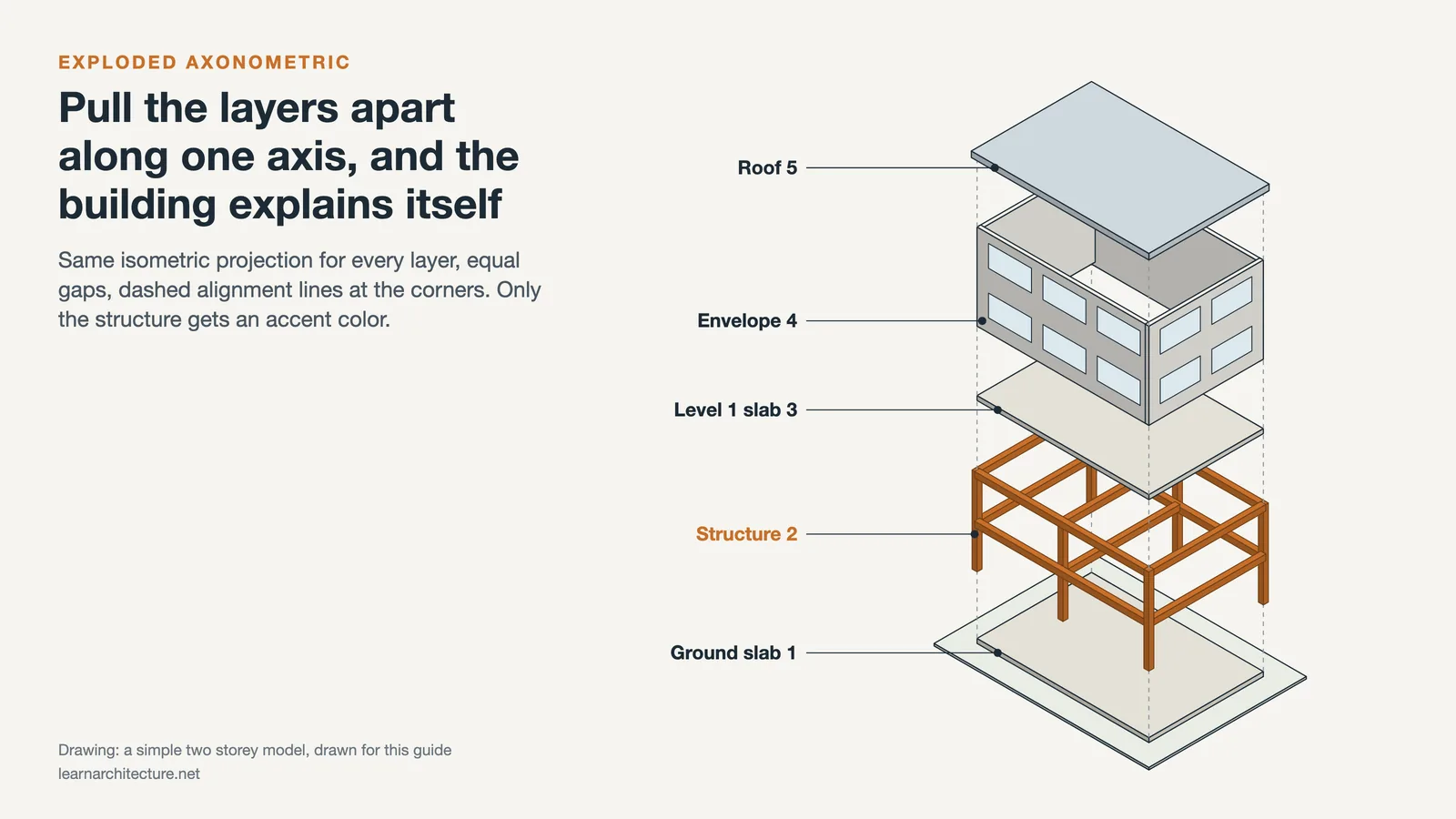
An exploded axonometric is a parallel-projection drawing of a building in which the parts are pulled apart along fixed axes, so you can see how floors, structure, envelope and roof stack together. Every piece keeps its true scale, and the order of separation tells the reader how the building is assembled.
Studio reviewers ask for this drawing because it answers the question a plan and a section cannot answer on their own: how do the pieces relate in three dimensions? A good exploded axonometric drawing sits between a technical drawing and a diagram. It carries real geometry, but it is edited to make one argument. This guide covers the projection choice, how to plan the explosion, and the actual steps in Revit, Rhino and Illustrator, with a note for Archicad users. If you are still sorting out which diagram types belong on your board, start with our reference to architectural diagram types and conventions, then come back here.
What Is an Exploded Axonometric Drawing?
An exploded axonometric drawing combines two older ideas. The first is axonometric projection, a type of orthographic projection in which the object is rotated about its axes so that several faces show at once, while parallel lines stay parallel. The second is the exploded-view drawing, which shows the relationship or order of assembly of parts. That technique goes back to Renaissance engineers: Mariano Taccola (1382 to 1453) used it in his notebooks, and Francesco di Giorgio and Leonardo da Vinci refined it.
Architecture adopted the combination slowly. Auguste Choisy published his two-volume Histoire de l’architecture in 1899 with drawings that merged plan, elevation and section into a single view. In the 1920s the Bauhaus and De Stijl turned axonometry into a modernist habit. One well-known example is Theo van Doesburg and Cornelis van Eesteren’s Contra-Construction Project (Axonometric) of 1923, a gouache on lithograph measuring 22 1/2 x 22 1/2 inches (57.2 x 57.2 cm), now in the MoMA collection. In it, the planes of a house float apart so the composition reads as a set of separate surfaces rather than a closed box.
Today the term covers two slightly different drawings. The exploded axonometric diagram is abstract: colored volumes, a few labels, a single idea. The exploded axonometric in the technical sense shows real assemblies: slab, structure, cladding, roof build-up. Most student boards need the first, and most construction-focused modules need the second.
Isometric, Dimetric or Plan Oblique: Which Projection?
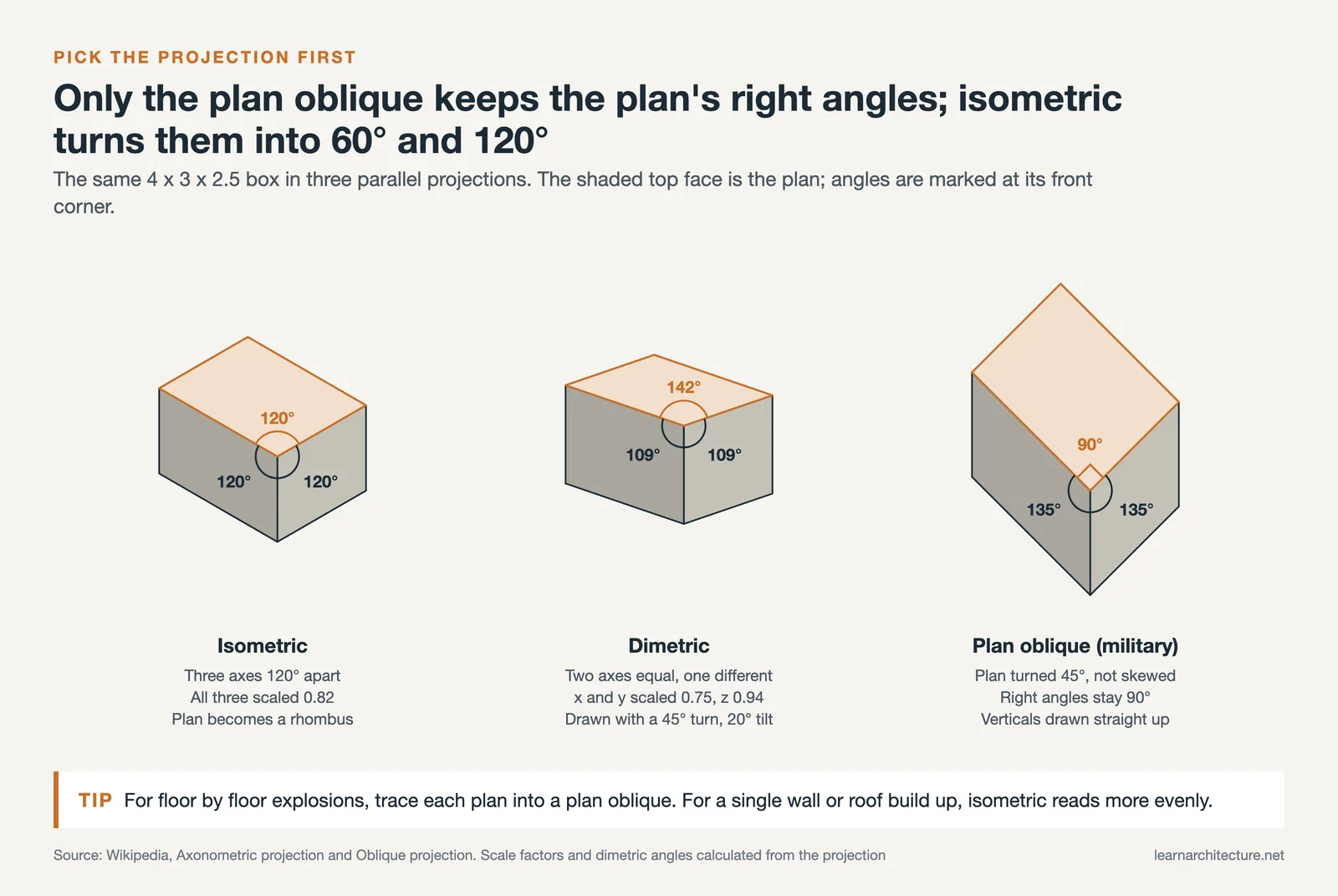
Before you explode anything, pick the projection. According to the Wikipedia entry on axonometric projection, an isometric view has three equally foreshortened axes with 120° between them, a dimetric view foreshortens two axes equally, and a trimetric view foreshortens all three differently. There is also the plan oblique, often called military projection, where the plan is rotated 45° but not skewed, so right angles in the plan stay right angles.
Projection Choices for Exploded Axonometric Architecture
The table below compares the options you will realistically use.
| Projection | Geometry | Plan shape | Best for |
|---|---|---|---|
| Isometric | Three axes at 120°, equal foreshortening | Distorted (rectangles become rhombuses) | Balanced views of compact buildings |
| Dimetric | Two axes equal, third scaled differently | Distorted | Favoring one facade over another |
| Plan oblique (military) | Plan rotated 45°, verticals drawn straight up | True shape | Floor-by-floor explosions built from plans |
For floor-by-floor explosions, the plan oblique is the easiest to draw by hand or in Illustrator, because each plate is simply the plan rotated. For a single assembly, such as a wall or roof build-up, isometric usually reads better. Our isometric drawing tutorial for architecture covers the construction of the grid itself.
Plan the Explosion Before You Open Any Software
Most weak exploded drawings fail at the planning stage, not the software stage. Decide three things on paper first.
- The argument. Write one sentence: “This drawing shows that the timber frame carries a light polycarbonate skin” or “Each floor shifts to create a terrace.” Anything that does not serve that sentence gets simplified or removed.
- The direction of separation. Floors and roofs usually lift vertically. Facade layers usually slide outward, perpendicular to the wall. Mixing both in one drawing is possible, but each part should move along one axis only.
- The order. Stack parts in the order they are built or in the order the reader should understand them: ground, structure, floors, envelope, roof. The gap between layers can vary, but keep it consistent within a group.
What to Explode: Floors, Systems or Assemblies
There are three common approaches. A floor-by-floor explosion separates each level and works well for mixed-use or stacked programs; pair it with a zoning diagram color scheme so the program reads at a glance. A system explosion separates structure, circulation, envelope and services, which suits a technology module. An assembly explosion zooms into one detail, such as a facade panel or a roof edge, and behaves like an isometric construction detail.
💡 Pro Tip
Sketch the explosion as a thumbnail first, with rectangles only. If the layers overlap so much that a floor plate hides the one below, increase the gap or change the viewing angle before you model anything. Fixing overlap in software after export usually means redrawing half the linework.
How to Make an Exploded Axonometric in Revit
Revit handles the explosion natively with the Displace Elements tool. Autodesk describes displacement sets as a way to create selectively exploded views that show how the pieces fit together. The key point is that the displacement belongs to the view, not to the model, so your plans and sections stay untouched.
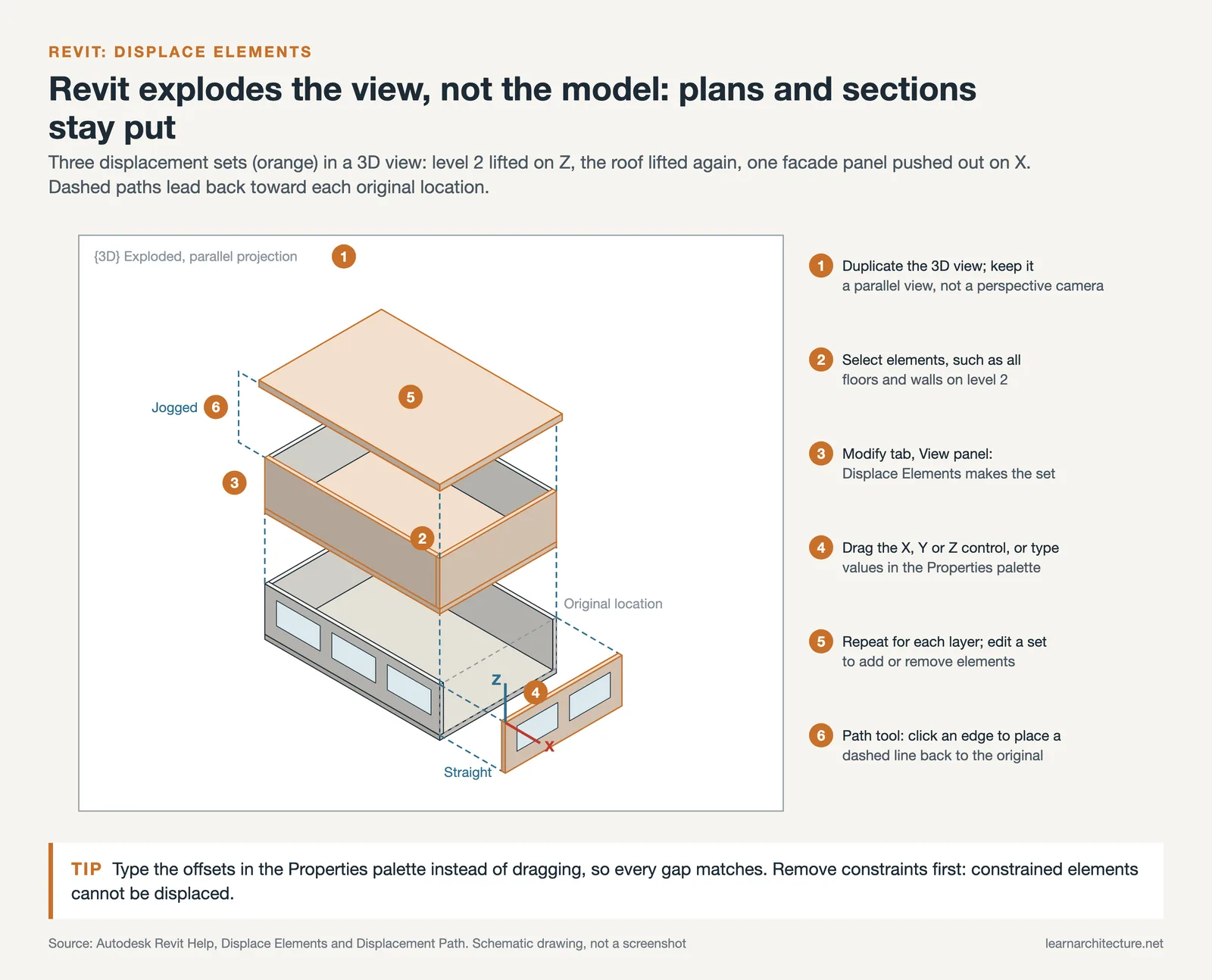
- Duplicate your default 3D view and rename it, so the exploded axonometric Revit view has its own settings. Make sure it is not a perspective camera if you want a true axonometric.
- Select a model element or a group of elements, such as all floors on level 2.
- On the Modify tab for that element, open the View panel and click Displace Elements. The selection becomes a displacement set.
- Drag the X, Y or Z controls to move the set, or type exact values in the Properties palette. Typed values keep gaps consistent.
- Repeat for each layer. To change what belongs to a set, edit the displacement set and add or remove elements.
- Select a set and use the Path tool on the Displacement Set panel. Hover over an edge, and Revit shows a dashed line back to the original location; click to place it.
Paths can be set to Straight or Jogged in the Properties palette. Their line weight, color and pattern are controlled under the Displacement Path category, per view through Visibility/Graphics or project-wide through Object Styles.
📐 Technical Note
Autodesk’s help notes a few limits: constrained elements cannot be displaced until the constraints are removed, tags, annotations and dimensions cannot be displaced, and dimension references are not available on displaced elements. The tool also works in 2D views, so the same technique can pull apart elements in an elevation or section.
If you are deciding which program to build the model in at all, our comparison of Rhino vs Revit for architecture explains where each one fits.
How to Make an Exploded Axonometric in Rhino
Rhino has no dedicated explode-view command, so you move the geometry yourself and then flatten the result into linework. The advantage is full control over every layer.
- Organize the model by layer before you start: one layer per floor, system or assembly part. Work on a copy of the file so the assembled model stays intact.
- Set a viewport to a parallel projection and rotate it to the angle you want. Save it as a named view so every future export matches.
- Select a layer’s objects and use the Gumball. Dragging the Z arrow moves objects along that axis, and clicking the move handle lets you type an exact distance. Tapping Alt while dragging toggles copy mode, which is useful if you want the assembled model and the exploded version side by side.
- Run Make2D from the saved view. The command draws object edges and outlines as flat curves on the World Top plane.
Make2D gives you options that matter for this drawing. Turn Hidden lines on if you want dashed geometry behind the layers, and decide whether to show tangent edges on curved polysurfaces. The output is sorted into sublayers by curve type under a parent layer, which makes it easy to assign line weights later. Register with previous lines up a new run with earlier output, so you can re-export one layer after an edit without shifting everything. One limit: Make2D does not create intersection lines where objects pass through each other. McNeel’s help points to the Intersect command for those.
Finishing Your Exploded Axonometric in Illustrator
Illustrator is where most exploded axonometric drawings get their final look, whether the linework comes from Revit, Rhino or Archicad. There are two routes.
Route 1: Clean Up Imported Linework
Export the flattened view as DWG, DXF or PDF, open it in Illustrator, and rebuild the hierarchy. Assign the heaviest line to cut edges and outer profiles of each layer, a medium line to visible edges, and a thin dashed line to alignment paths. Our guide to architectural line weights gives a hierarchy you can copy. Fill each layer with a flat tone or a single accent color, and keep labels outside the drawing with short leaders.
Route 2: Build Simple Plates Directly
For a diagrammatic floor-by-floor explosion, you can skip 3D software entirely. Adobe’s help for the 3D and Materials panel (Window > 3D and Materials) lists object types including Plane and Extrude, a Depth setting, and Rotation presets based on direction, axis and isometrics. Draw each floor plan outline as a flat shape, apply Extrude with a small depth for slab thickness, choose an isometric preset, and set Perspective to 0° so edges stay parallel. Apply the same rotation to every plate, then stack them vertically with equal spacing.
For a plan oblique, the process is even simpler: rotate each plan 45°, then draw vertical lines up from the corners. The plan keeps its true shape, which means you can trace it straight from your drawing set.
⚠️ Common Mistake to Avoid
Mixing projections in one drawing. A roof exported as isometric from Revit and a floor plate built as plan oblique in Illustrator will never line up, and reviewers notice immediately. Pick one projection at the start and apply it to every layer, including the ones you draw by hand.
A Note for Archicad Users
Archicad exploded axonometric drawings follow the same logic as Rhino. Graphisoft’s help documents parallel (axonometric) projections under View > 3D View Options, including preset projection types and a custom axonometry you set by dragging the axes. Move element groups by layer or story in a copy of the model, save the projection, and export the 3D view as 2D linework for finishing.
Graphic Conventions That Make an Axonometric Exploded View Readable
The software only gets you geometry. Readability comes from a few conventions that reviewers expect.
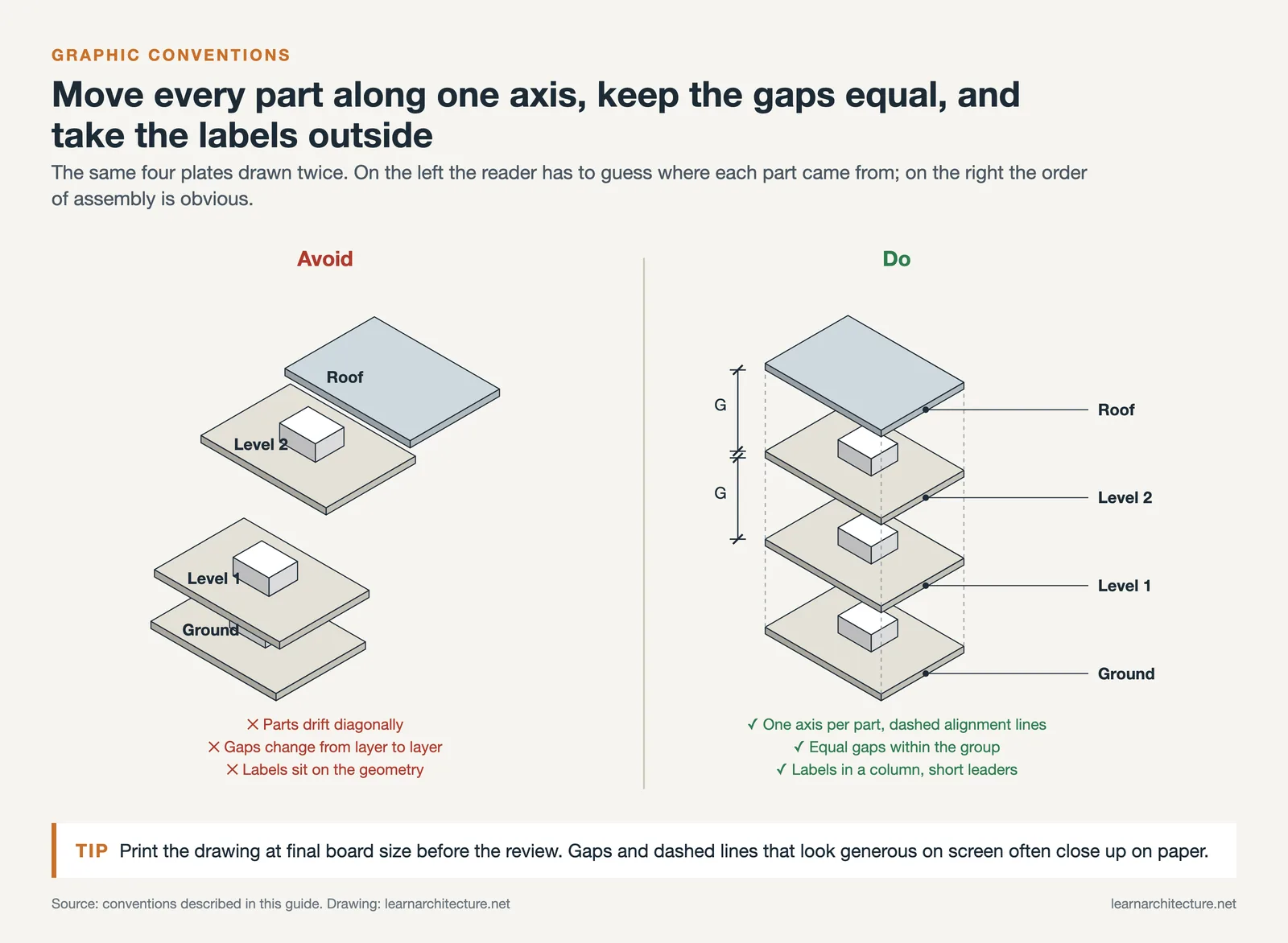
- One axis per part. Every element moves along a single axis, and the dashed alignment line shows that axis. Diagonal drift makes the reader guess where a part came from.
- Consistent gaps. Use the same separation between floors, and a different, also consistent, separation for facade layers.
- Selective detail. Draw the layers that carry your argument in full and reduce the rest to outlines or a light gray tone.
- Labels outside the drawing. Place text in a column beside the explosion, connected by thin leaders, rather than over the geometry.
- One ground reference. Keep the site plate or ground floor anchored so the reader has a fixed base.
On a presentation board, the exploded axonometric usually works best as the second or third drawing, after the site plan and before the technical sections. The presentation board tips on this site cover how to size it against the rest of the sheet.
💡 Pro Tip
Print the drawing at final size before the review. Gaps and dashed paths that look generous on a monitor often collapse at board scale, and thin fills can disappear entirely on a plotter. A quick test print tells you whether to widen the spacing or thicken the lines.
What This Means for Your Next Project
The exploded axonometric is less about the software and more about editing. Revit’s displacement sets, Rhino’s Gumball with Make2D, and Illustrator’s 3D panel all produce the same basic result; what separates a strong drawing from a busy one is the decision about what to pull apart and why.
Your Next Step: Take your current studio project, write the one-sentence argument for an exploded view, and sketch a thumbnail with no more than five layers before you touch any software.
Frequently Asked Questions
What is the difference between an axonometric and an exploded axonometric?
An axonometric shows the assembled object in parallel projection. An exploded axonometric uses the same projection but separates the parts along fixed axes, so hidden layers such as floors, structure or insulation become visible along with their order of assembly.
Can you make an exploded view in Revit without moving the model?
Yes. The Displace Elements tool creates displacement sets that move elements only in the current view. The model, plans and sections keep their real positions, and you can add dashed paths that link each displaced set back to its original location.
Which projection is best for an exploded axonometric diagram?
For floor-by-floor explosions, a plan oblique keeps each plan in its true shape and is fast to draw. For single assemblies and compact buildings, isometric gives a more balanced view. The main rule is to use one projection for every layer.
How far apart should the layers be?
Far enough that no layer hides the one beneath it, and consistent within each group. Test the spacing with a quick thumbnail and a print at final board size, then adjust before exporting linework.














Leave a comment