


Table of Contents Show
The Lumion asset library is the built-in collection of models, materials, plants, and people that ships with the software, but you are not limited to it. Free model and texture sites such as Poly Haven, ambientCG, and the SketchUp 3D Warehouse let architects expand that library at no cost.
What Is the Lumion Asset Library?
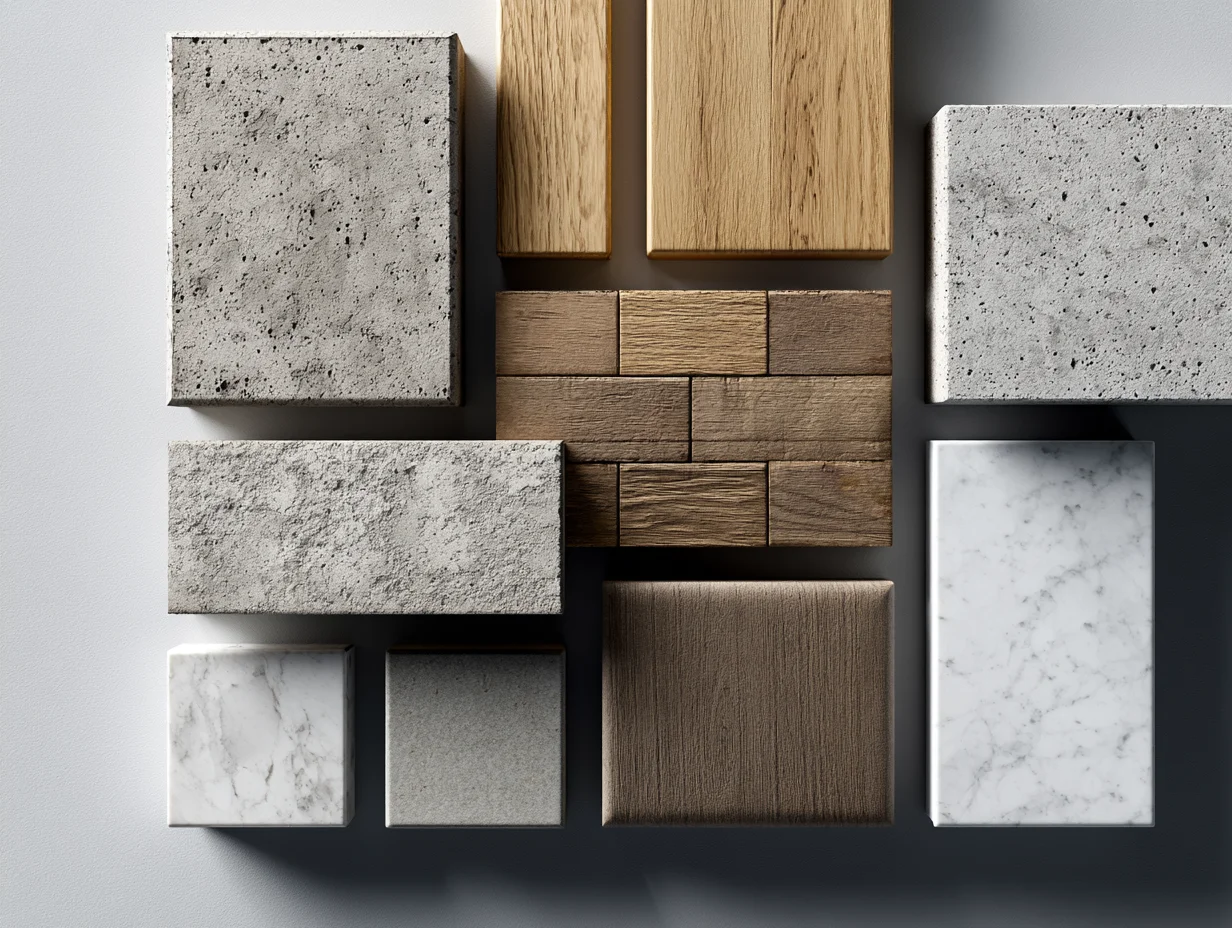
The Lumion asset library is the package of ready-made 3D content that comes with every Lumion license. It covers furniture, vehicles, vegetation, people, animals, materials, and more, all sorted into searchable categories you drag straight into your scene. The point is speed: instead of modeling a tree or a parked car, you pull one from the library and keep your attention on the building.
Recent versions group this content into an Object Library and a Material Library. The Object Library holds the placeable items, from broadleaf trees and office chairs to traffic cones and wind turbines, while the Material Library handles surfaces like glass, brick, concrete, and water. If you are still deciding where Lumion fits in your process, this overview of Lumion for architectural visualization sets the context, and a wider look at the architectural visualization workflow shows how these assets support a full presentation.
📌 Did You Know?
The Lumion library holds more than visible objects. It also ships with a decal collection for adding rust, mold, cracks, and potholes to surfaces, plus ambient sound effects for everything from city traffic to forest birdsong. These extras, documented on Lumion’s official Content Library page, help a static render read as a real place rather than a clean model.
The official source for everything bundled with the software is Lumion’s own website, where each release lists exactly what was added. For most projects, the built-in set already covers entourage and common surfaces, which is why many architects only reach for outside assets when they need a specific object or a higher-quality material.
Best Free Lumion Assets and Libraries to Expand Your Renders
When the default content runs short, free libraries fill the gap. The sources below all work with Lumion either through native import or by supplying textures you apply inside the Material Library. Most are free to use, though licenses and sign-up rules differ, so the table gives you the quick version before the detail.
Free Lumion Asset Sources Compared
Here is how six reliable options stack up on asset type, license, and what each one does best:
| Source | Asset Type | License | Sign-Up | Best For |
|---|---|---|---|---|
| Lumion Content Library | Objects, materials, nature, people | Included with license | Built in | All-round scene building |
| SketchUp 3D Warehouse | 3D models, furniture, props | Varies by upload | Optional | Furniture and fixtures |
| Poly Haven | Models, textures, HDRIs | CC0 | None | Skies and hero props |
| ambientCG | PBR materials, textures | CC0 | None | Tileable surface materials |
| Architextures | Parametric brick, stone, tile | Free tier | For full resolution | Custom patterned surfaces |
| CGTrader (free filter) | 3D models, native Lumion files | Free and paid mix | Account required | Specific or branded models |
Lumion Content Library
Before going anywhere else, it is worth knowing what already ships with the software. The built in Content Library covers objects, materials, nature, people and vehicles, and it is the only source here that needs no import step at all: you place an item and Lumion handles the rest. Recent versions carry more than 8,500 objects according to the Lumion Knowledge Base, which is usually enough for massing, landscape and populating a scene. Where it runs short is specificity, a named chair, a particular brick bond, a branded fixture. That is the gap the five sources below fill.
SketchUp 3D Warehouse
The 3D Warehouse is Trimble’s model platform and calls itself the largest 3D model library in the world, with around 30,500 downloads an hour and 2,500 brands publishing real product models. For Lumion users its advantage is mechanical: Lumion reads .skp files natively, so a Warehouse download usually drops into the scene with no conversion. The trade off is that anyone can upload, so quality swings widely. Check the polygon count before importing, prefer models from brand accounts or curated collections, and read the individual listing because licensing is set per upload rather than site wide. Best for furniture, fixtures and manufacturer products. The import settings are covered further down. Browse it at 3D Warehouse.
Poly Haven
Poly Haven describes itself as the public 3D asset library, and it is the simplest source on this list to use: everything is CC0, there are no paywalls and no sign up, and the site states you can use the assets for any purpose without restriction. It publishes three categories, HDRIs, textures and photo scanned models, which makes it the one place here that improves both your surfaces and your sky in a single visit. The HDRIs matter more for Lumion than people expect, because a good environment map fixes the lighting of an entire render faster than any material swap. The model set is smaller than the Warehouse but much cleaner. Best for skies and hero props. Download from Poly Haven.
ambientCG
ambientCG runs on the same CC0 licence with no attribution required, but it goes deeper in one direction instead of spreading across categories: PBR surfaces are the point. The catalogue is organised into surfaces, HDRIs, substances and 3D assets, and the site passed 2,500 CC0 assets in 2026. Every surface download comes with the full map set, albedo, normal, roughness and displacement, which is what lets a material react correctly to Lumion’s lighting rather than looking like a flat photograph pasted on a wall. If you only add one texture source to your workflow, this is the one with the deepest surface library. Browse it at ambientCG.
🔢 Quick Numbers
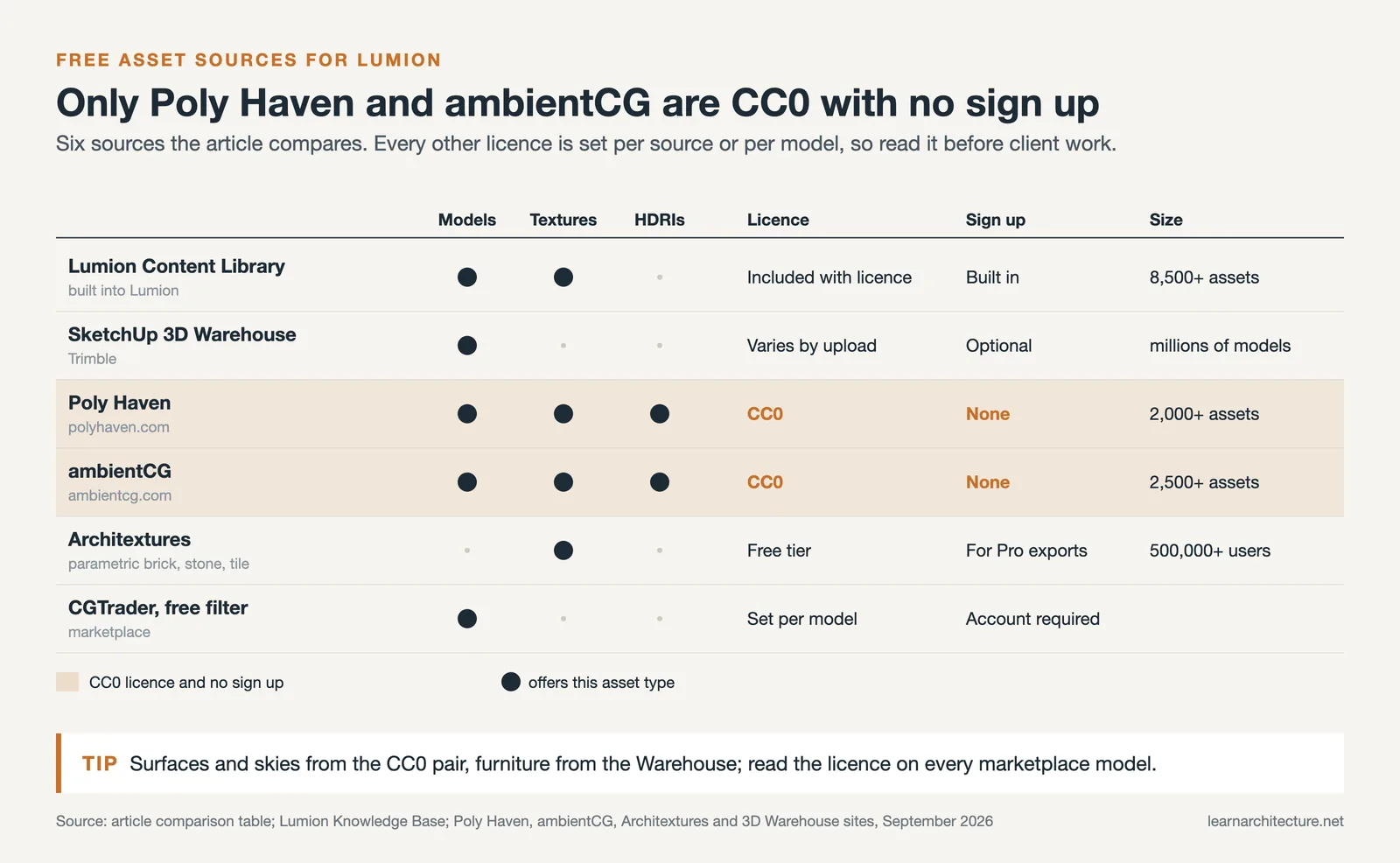
- Lumion’s built-in Object Library has grown past 8,500 assets in recent versions (Lumion Knowledge Base).
- ambientCG passed 2,500 CC0 assets in 2026, covering PBR surfaces, HDRIs and substances (ambientCG).
- Poly Haven offers over 2,000 free textures, HDRIs, and 3D models with no sign-up required (Poly Haven).
Architextures
Architextures solves a different problem. Rather than handing you a fixed image, it generates parametric materials, brick, stone, tile and timber, that you adjust in the browser before downloading: scale, colour, bond pattern, joint width and grout colour are all editable. That matters when a facade needs a specific bond or a mortar width that no stock photograph happens to have. It also carries real manufacturer ranges, so you can render a wall in an actual product rather than a generic approximation. The platform is used by more than half a million architects and designers, and the free tier covers browsing and downloading at standard resolution while full resolution output sits behind an account. Best for custom patterned surfaces. Try it at Architextures.
CGTrader (free filter)
CGTrader is a commercial marketplace, but its free filter turns it into a usable library when you need something the other five do not have: a specific appliance, a vehicle, a branded light fitting. Filter by price and by format, and you will find FBX and OBJ downloads, and occasionally native Lumion files that skip the conversion entirely. Two cautions. An account is required to download, and licences are set per model, so open the licence tab before using anything in client work. Best for specific or branded models that are hard to find elsewhere. Search the free catalogue at CGTrader.
Presets and effects, not just assets
Geometry and materials are only part of a Lumion scene. For render presets and effect files the community has built a steady supply of styles you can study and adapt, and this roundup of sites that share Lumion effects and presets is a useful companion to the sources above. If you want to know what the software itself added most recently, the breakdown of the newest Lumion library updates tracks each release.
How Do You Add Assets to the Lumion Library?
You add assets to the Lumion library by importing 3D model files directly or by applying downloaded textures inside the Material Editor. For objects, use the Import menu or drag a supported file, such as .skp, .fbx, .dae, .obj, or .max, into the scene. Once imported, Lumion lets you save the model into your own custom library category so you can reuse it across projects without importing again.
Textures follow a slightly different path. Rather than importing them as objects, you assign a Lumion material to a surface, then swap in the downloaded maps through the material settings. The SketchUp pipeline is the most common entry point for architects, and this step-by-step SketchUp to Lumion workflow covers model preparation and material handling in detail.
💡 Pro Tip

When you bring a free model from a marketplace into Lumion, check its polygon count before copying it across a scene. A single high-poly tree or sofa repeated fifty times can slow your viewport to a crawl. Reduce the geometry, or pick a lower-detail version for background objects, and save your heaviest models for foreground hero shots.
If you prefer to see the process rather than read it, the official walkthrough below covers placing, organizing, and managing the built-in content efficiently.
Video: Working With the Lumion Content Library
This short tutorial from the Lumion team shows how the content library is organized and how to place and arrange assets inside a scene, which makes the import steps above easier to picture.
What About Lumion 8 Assets and Older Versions?
Plenty of architects still run older builds, and searches for Lumion 8 assets remain common. The good news is that imported models and textures are not tied to a single version. An .skp or .fbx file imports into Lumion 8 the same way it does into the current release, and CC0 textures from Poly Haven or ambientCG work regardless of which year you are on. What does change is the built-in catalog. Each version ships a different set, and effect or preset files saved in a newer release may not load in an older one, so version compatibility is the thing to watch when you download community files.

If you are weighing whether to stay on an older build or move up, the size and quality of the bundled library is one fair point of comparison, alongside rendering features and hardware demands. For students setting up a toolkit from scratch, this list of essential software for architecture students places Lumion among the rendering options worth learning early.
License terms differ between platforms and can change over time. Always confirm the current license on each asset’s download page before using it in client or commercial work, since some free models carry attribution or non-commercial conditions.
Where to Go From Here
Your Next Step: Pick one texture site and one model site from the table, download a single material and a single object, and import both into a test scene this week. Building the habit on a small render is far easier than overhauling a live project, and it tells you fast which free libraries fit the way you actually work.












Leave a comment